Overview
This article provides instructions for connecting, mapping, and activating the Trip.com Online Travel Agency (OTA) distribution channel within the YieldPlanet Channel Manager system. Connecting Ctrip allows property managers to synchronize inventory, rates, availability, and breakfast configurations automatically.
Core Limitations & Exceptions
⚠️ CRITICAL LIMITATION: Breakfast counts default to zero (0) unless explicitly configured during the room synchronization process using the exact syntax outlined in this document.
⛔ RESTRICTION: Real-time updates will not sync until the channel status icon is manually toggled to active on the main dashboard.
Prerequisites
Before initiating the Ctrip integration, ensure you have completed the following foundational steps within the YieldPlanet Channel Manager:
-
Ctrip Credentials: You must possess valid contract details and account credentials directly from Ctrip. To authenticate the connection, only your Ctrip Password and Ctrip Hotel ID are required.
Note: In the YieldPlanet credential configuration window, you must input your exact Ctrip Hotel ID into both the
Hotel IDfield and theUsernamefield.
Channel Visibility: The Ctrip channel must be enabled and visible in your distribution partner list under Channel ID 5085. If Ctrip (Id. 5085) is hidden, navigate to the Filter and Display Partners section in YieldPlanet to unhide the channel.
Steps
Step 1: Retrieving Ctrip Rooms and Rate Plans
To sync your inventory, you must fetch the latest room categories and rate codes directly from the Ctrip system.
Navigate to the Partners management screen in the YieldPlanet sidebar menu.
Select Ctrip from your list of connected distribution channels.
Click Fetch/Retrieve Rooms and Rates to pull live data from the Ctrip system.
Step 2: Configuring Breakfast Quantities (Optional)
Ctrip requires explicit data regarding the number of breakfasts included per room category. YieldPlanet uses a specific comma-separated syntax during the room retrieval phase to pass this data.
Locate the Ctrip Room ID field during the room retrieval or configuration step.
-
Append a comma (
,) followed by the exact number of included breakfasts directly after the room identification number.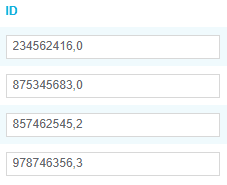
Breakfast Configuration Examples:
Example 1 (Two Breakfasts): If the Ctrip Room ID is
12345and the room includes two breakfasts, enter:12345,2Example 2 (Zero Breakfasts): If you leave the field as just
12345without a comma or number, the YieldPlanet system automatically transmits0breakfasts to Ctrip.
Step 3: Mapping Ctrip Rooms and Rates
Mapping links your internal YieldPlanet room types to the corresponding rooms sold on the Ctrip marketplace.
Navigate to the Mapping Table screen in YieldPlanet.
Match each internal YieldPlanet room type with the corresponding retrieved Ctrip Room ID.
Match your internal YieldPlanet rate plans to the corresponding Ctrip Rate Plan Codes.
Click Save Mapping to commit the structural relationships.
Step 4: Activating the Ctrip Channel
Connections remain dormant and will not sync live data until explicitly activated via the health monitoring interface.
Navigate to the main YieldPlanet Dashboard.
Locate the Channel Health widget section.
-
Find the Ctrip Icon, which will initially display as Yellow (indicating an inactive, dormant connection).

Click the Ctrip Icon.
-
Confirm the Ctrip Icon turns Blue, which indicates the channel is successfully activated and live synchronization is running.

Troubleshooting
-
Issue: Ctrip is showing 0 breakfasts on the OTA website.
Cause: The room ID was saved without the breakfast suffix modifier in YieldPlanet.
Resolution: Go back to the Partners screen, locate the Ctrip Room ID, and append
,X(where X is the number of breakfasts, e.g.,54321,1). Save changes.
-
Issue: Rates and availability are not updating on Ctrip after mapping.
Cause: The channel has not been activated from the dashboard.
Resolution: Check the Channel Health section on the main dashboard. If the Ctrip icon is yellow, click it until it turns blue to initiate live sync.
FAQs
-
Q: What happens if I do not add a number after my Ctrip Room ID?
A: YieldPlanet will automatically send a value of
0breakfasts to Ctrip for that specific room category.
-
Q: How do I know if the Ctrip connection is live and actively syncing?
A: Check the Channel Health section on your YieldPlanet Dashboard. If the Ctrip logo/icon is Blue, it is active. If it is Yellow, it is paused or inactive.
Key Entities List
Product: YieldPlanet Channel Manager
Channel / OTA: Ctrip (Trip.com Group)
System Features: Channel Health Widget, Mapping Table, Partner Management Screen, Dashboard
Data Entities: Ctrip Room ID, Rate Plan Codes, Breakfast Suffix Modifier
System Statuses: Yellow (Inactive/Dormant), Blue (Active/Live Sync)