Below is a step-by-step guide showing you how to set up competitor price rules. In Price Control, you will accordingly see price recommendations corresponding to your price rules.
Set up Comp Price Rules
- Go to the configuration menu Price Shopper and choose Comp Price Rules
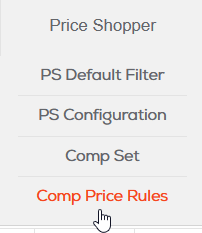
- Click Add to create a new rule

- Create your comp price rule in the edit menu. An explanation for all requested fields you’ll find below the print screen.
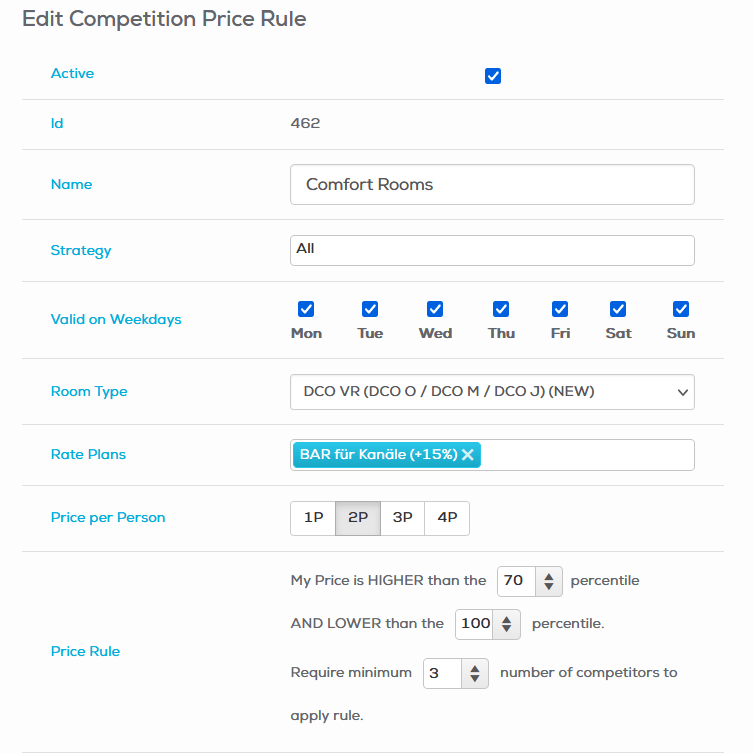
Active: Option to unclick to deactivate the price rule
Name: Enter a name for the room, e.g. name of the room category for which the rule appliesStrategy: By default the rule will be applied for all strategies. Otherwise please choose for which strategies the rule must be valid.
Valid on Weekdays: By default the rule will be applied for all weekdays. Otherwise please untick the weekdays for which the rule must not be valid.
Room type: Choose the room type for the rule.
Note:
Please make sure that you choose the room type that is mapped to the channels, probably it’s a Virtual Room type.
Rate Plans: Choose a rate plan which is mapped to the channels. The comparison with prices from this rate plan will affect this rule and future price recommendations.
Price per Person: Please select for which occupancy the comparison must be done. E.g. 2 Persons for double room / 1 Person for Single room / 3 or 4 persons for family room
Price Rule: With percentile values you choose where your property should stand among the competitors. A percentile is a comparison score between a particular score and the scores of the rest of a group.
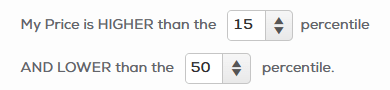
Example 1: Price is higher than the 15 percentile and lower than the 50 percentile: the rule will create recommendations to place your property in the lower third among your competitors.
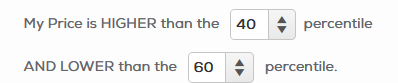
Example 2: Price is higher than the 40 percentile and lower than the 60 percentile: the rule will create recommendations to place your property in the middle among your competitors
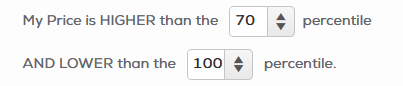
Example 3: Price is higher than the 70 percentile and lower than the 100 percentile: the rule will create recommendations to place your property in the upper quarter among your competitors
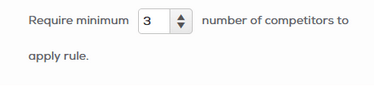
Please enter a minimum number of competitors who need to meet the criteria in order to make this rule valid.
In the second part of the menu, you will find all your competitors listed. Here you choose what will be compared with your settings from the upper part.
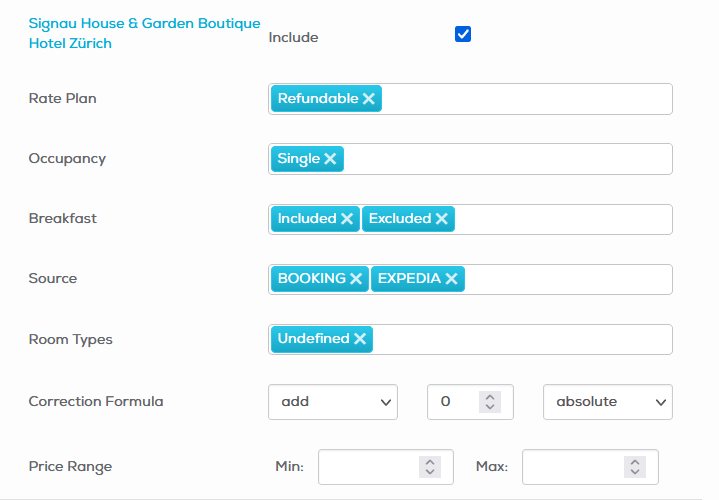
Rate Plan: We recommend comparing rate plans with the same policy. Refundable with refundable / Non refundable with non refundable.
Occupancy: Compare the same occupancies (Single if you set 1 Pax above, Double when you set 2 Pax above etc.)
Breakfast: Choose if the system must compare your competitors’ rates including or excluding breakfast. If you choose both options, your settings from above will be compared with rate plans including and excluding breakfast
Source: Choose for which channels the comparison must be done
Room Types: Here you will find a list of your competitors' rooms, activated on the price shopper. Please select the room from your competitor that you wish to be compared with your own room type chosen above.
Note:
If you don’t find a suitable room category to compare, please choose “Undefined”.
Correction Formula: An option (not required from the system) to add or subtract an individual amount to your rate plan set above. Please enter the formula for every competitor that must be considered.
Price Range: An option (not required from the system) to set a minimum and maximum price for future comparisons. Save the rule, using the Save button at the very end of the menu:

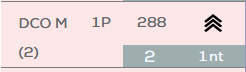
Existing Comp price rules will make price recommendations, visible in the section Price Control, as dotted arrows. Each arrow stands for 1 price level. (1 arrow up/down = 1 price level up/down, 3 arrows up/down = 3 price levels up/down)

If “Automatic price adjustment” is active, the system will adjust prices automatically and it will be visible as black arrows instead of dotted. Find out how to enable automatic comp price adjustment based on comp price rules as default and do manual changes in Price Control.