Price Optimizer calculates price changes and forecasts for room type groups. That’s why each room category must be assigned to a room type group, that contains 1 or more room categories. As calculations are made per room type group, the same changes will affect all room categories assigned in a room type group.
This step-by-step guide will show you how to set up a new room type group:
- Go to Configuration menu “Setup” and click on “Room Types”.

- You will find all your room categories listed. Under “Room Type Group Am”, you see to which room type groups they are assigned or if empty, that no room type group has been assigned so far.

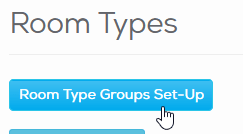
- To create or change room type groups, click on “Room Type Groups Set-Up” at the top left of this page:
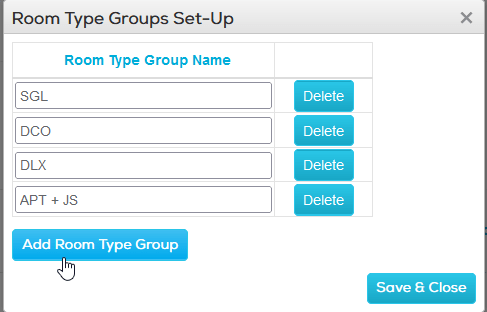
- Now you can add a new Room type group or change the name of an existing group and confirm your action with “Save & Close”
Note:
You are free to choose an individual nickname, we recommend choosing a group name that describes the categories that will be assigned, to avoid possible confusions in the future.
- To assign a room type group to a room category, make sure you choose the correct room type and click ‘Edit’ in the “Actions” section at the right side in order
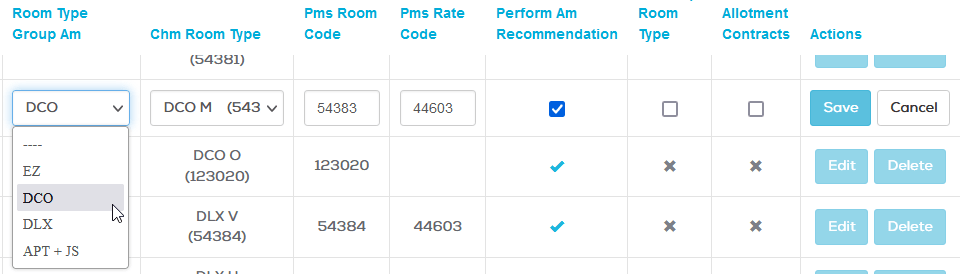
- Click on the menu in “Room Type Group Am” and choose the requested room type group. Confirm your action with “Save” at the right side.
In the Price Control section, if you choose a date, you see which categories belong to a room type group because of a slightly different color (red in this example) and the same price level in the “Price level” column on the right side.


In this example the room type EZ counts as a single room type group. Changes are done only for this room category.
DCO Room types belong to the same room type group, benefit from the same calculations and always show the same price level.