Distribution Rules allow you to set up the following restrictions:
Cap Availability of room types to channels: sending a certain number of availabilities to a channel.
Note:
This is not for a fixed allotment on channels. Once the available rooms have been booked, new availability will be sent again, however with the number of rooms set in this restriction
Stop Sell (closure) of Rate Plans, Room types, Channels or Strategies
Minimum length of stay for Strategies, Rate Plans, Room Types or Channels
Lower the availability of room types (Sending less availability to channels)
Close to arrival
Close to departure
- In Configuration Menu - Rules, click on Distribution Rules:

- To create a new Rule, press “Add” at the bottom left of the page and the input menu appears:
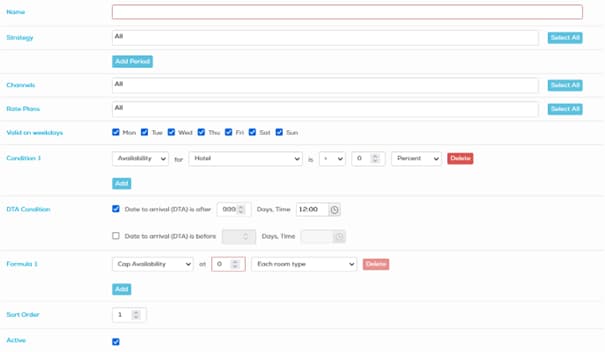
Name - Enter a title for the new rule. For example: “Close all channels during Christmas & New Year”
Strategy - Choose for which strategies the restriction should take effect. If nothing is assigned, the rule is valid for “All Strategies” by Default.
Add Period - For which period do you want to set the restriction? Please select. No Selection means, the rule is permanently valid and from now on.
Channels - Choose for which channels the restriction must take effect. If nothing is assigned, the rule is valid for “All Channels” by Default. Please note: CRS (Quoting Screen) is also listed as a channel:
Rate Plans - Choose for which rate plans the restriction must take effect. If nothing is assigned, the rule is valid for “All Rate Plans” by Default.
Valid on weekdays - Choose for which weekdays the restriction should take effect. All Weekdays are ticked by Default.Condition 1 - Describes when, (in which case) the rule should be applied. Please choose if the condition is valid for the hotel or just for a room type. Default Setting “Availability”: The rule is valid as soon your business shows availability:


Description of conditions:
If hotel or room type shows Availability of X % (Percent) or X Rooms (Absolute).
If for the hotel or a room type a certain Price Level is reached
For days with a Forecast of X % or X Rooms
For days with Pickup (within X days) of X % or X Rooms
You can insert more than 1 condition.
Note:
Rule becomes active only if all of the conditions are reached.
DTA Condition - Describes when (in which period before arrival date) the rule should take effect.
Default setting: Date to arrival is after 999 days, 12:00 o’clock: The rule is valid from today until 999 days in the future (forever).

Another example: The rule is valid 30 until 5 days before arrival date:

Another example: The rule is valid today, starting from 6.30 PM on:

Formula 1: Please enter the restriction

Cap Availability of room types to channels: sending a certain number of availability to one or more channels.
Note:
This rule will not provide a fixed allotment on partners' side. Once an available room has been booked, new availability will be sent again, however with the number of rooms set in this restriction, as long there is availability
Example: Send only 3 Single Rooms to channels (selected above). After a reservation has been made, Price Optimizer will send new availability and constantly fill up to availability 3, as long there is availability for this room type.

Close individual room types or all room types for Rate Plans, Channels, or Strategies selected above.
Note: To choose more than 1 individual room type you need to add a separate Formula for each room.

Example: To close a channel or rate plan completely, please select “Each room type”.

Minimum length of stay for Strategies, Rate Plans, Room Types or Channels
Example: To set a Min Los of 2 nights for a specific Rate Plan, choose the requested Rate. In Formula 1 enter Set Mlos at 2 for Each room type

With the same procedure you can set fixed minimum nights for several combinations such as for certain or all strategies, certain or all rate plans, certain or all room types, certain or all channels, always with the option to choose a specific period. If no period is assigned, the rule is valid from now on until forever.
Lower the availability of room types (Sending less availability to channels)
Example: Sending less availability of 2 Single Rooms to channels (selected above). If your property shows an original availability of 5 Single rooms, the system will send only 3 available rooms to partners. If the original availability shows 2 Single Rooms, the system will close sale and reopen only, if there are 3 Single rooms available.

Close to arrival
Option to set a Close to arrival for a specific date or period and for individual or all channels. After a close to arrival is set for a specific date, the system will not allow reservations, starting from the date chosen in this rule.
Example: Close to Arrival for New Years day:

Close to departure
Option to set a Close to departure for a specific date or period and for individual or all channels. After a close to departure is set for a specific date, the system will not allow reservations, ending on the date chosen in this rule.
Example: Close to departure on New Years day:

Note:
To make sure that this rule is valid also with 0 availability, we recommend to set Condition 1 to: Availability for Hotel is lower than “a much higher number of the total of your hotel rooms”. This way you make sure that the rule is always valid for the chosen period.
Sort Order - This number defines where in the summary list this rule will be displayed
Active - click or unclick to activate or deactivate the distribution rule.
Deactivating an existing Distribution Rule: Untick the field “Active” to deactivate the rule. It will stay on the summary list.

Deleting an existing Distribution Rule: To completely delete an existing rule, please choose “Delete” from the Action section on the right side of the list. The rule will disappear completely.

-
After adding or deactivation a distribution rule, please don’t forget to send an update to all channels by doing a Recalculation for the day or period affected:
Configuration - Bulk Recalculation
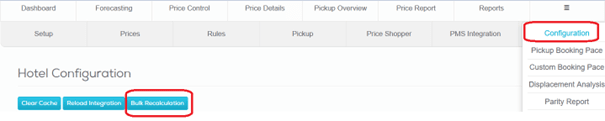
Choose the requested period and confirm on the bottom right with “Recalculate”. Updates will now be sent to the channel manager and partners:
