Below is a step-by-step manual on how to properly configure a Virtual Room for Price Optimizer.
How to Create a Virtual Room
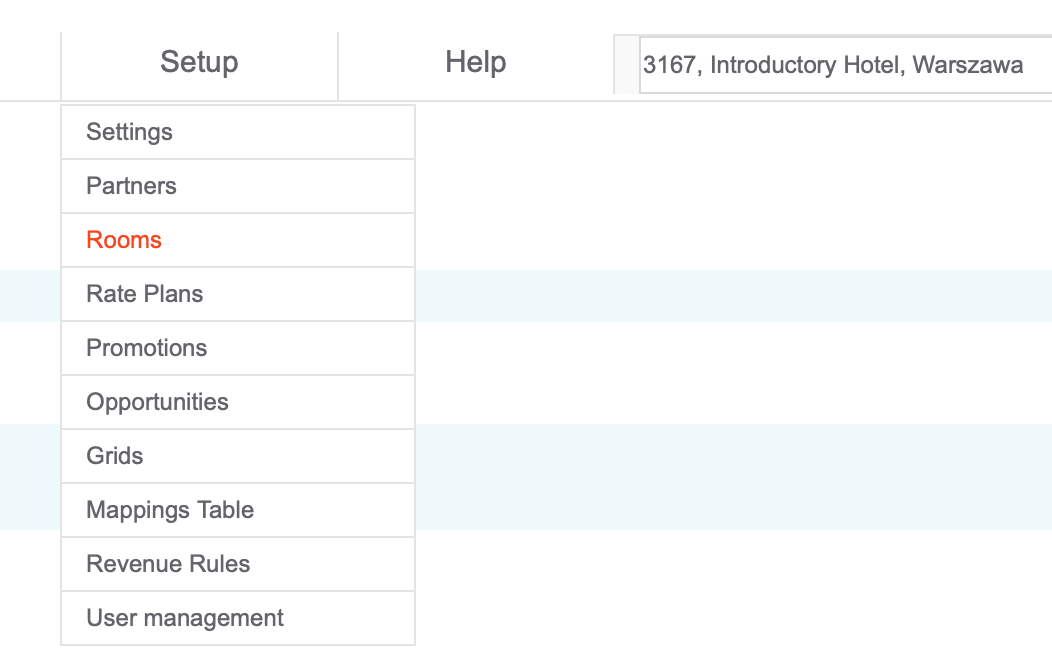
- Log into channel manager through this link and go to Setup > Rooms section.
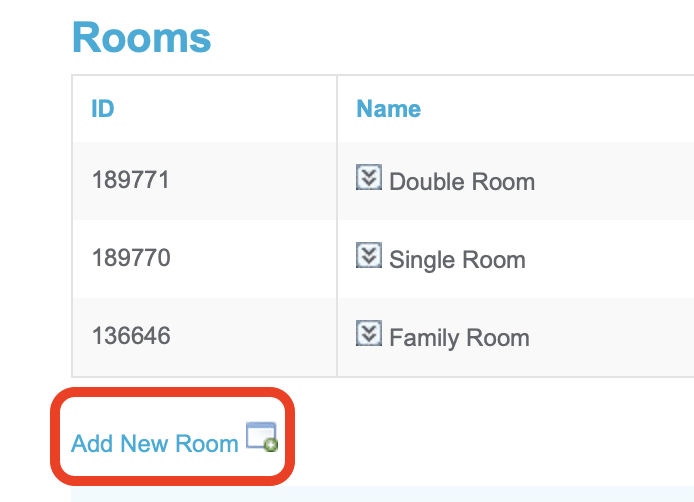
- Click Add New Room in the lower left corner below the table:
- Fill in the form:

When creating a virtual room, it is very important to pin it to master room. In “Pin to Master” dropdown list, pick a room to which you’d like to connect new virtual room so that all reservations will match it.Note:
It is a good practice to mark your virtual room giving it a proper name. In the screenshot above I went with “VRTL” preceding a proper room name.
- Log into Price Optimizer and go to Configuration menu:

Then pick Setup > Virtual Rooms: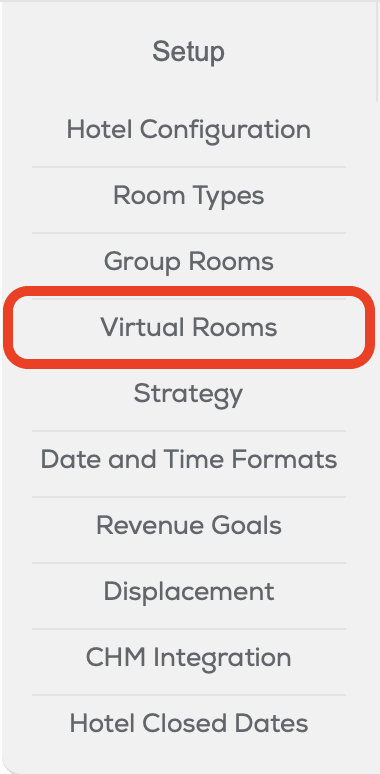
Virtual room created in channel manager should be automatically synchronized with Price Optimizer and visible on the list. If you can’t see it on the list, click Refresh Settings in the bottom left below the table:
How to Configure a Virtual Room
- In Virtual Rooms panel find the room you’d like to configure and click Edit:

- Fill in the form with details on how you’d like the virtual room to function:

Linked to physical rooms: choose rooms on which you’d like the virtual room to operate on. Order of rooms will matter. Like on screenshot above, system will sell first STD SGL rooms and then will start adding availability from STD DB room.
Occupancy Rule:
- Min - Room with the smallest availability (that is not sold out) will be used
- Max - Room with the highest availability will be used
- Sum - Sum of the availability of all linked rooms
- Chained – Availability of the first linked room until that option is sold-out, then availability from the second option, etc
Price Rule:
- Min - price of the cheaper room will be used
- Max - price of the most expensive room will be used
- Chained - when cheaper rooms will be sold out, price of the room that is next in line will be used
Sold Out Rooms - if checked, only rooms that still have availability will be considered by the price rules
MLOS - if checked, the minimum length of stay will be taken from the same room category that price is taken from
Occupancy Based Pricing - select the option for number of pax to enable
- If necessary, you can also pick strategies for which specific settings apply, so that the virtual room can behave different depending on the applied strategy:
