1. Definition and Purpose of Mapping
Mapping is the process of connecting internal hotel room types and rate plans with corresponding entities on Online Travel Agency (OTA) extranets. This ensures that inventory, price, and restriction data are delivered to the correct locations within partner systems. Mapping requires creating a precise path between a local Room/Rate pair and a Partner Room/Rate pair.
2. Accessing Partner Mapping Tables
Each OTA partner maintains an individual mapping table. To manage a specific partner:
- Navigate to the mapping section.
- Identify the partner by name.
- Click the blue bar corresponding to the OTA to expand its specific mapping table.

3. Adding New Room and Rate Mappings
To add a new combination of room and rate plan to an existing table:
- Click Add New Mapping (located in the lower-left corner).

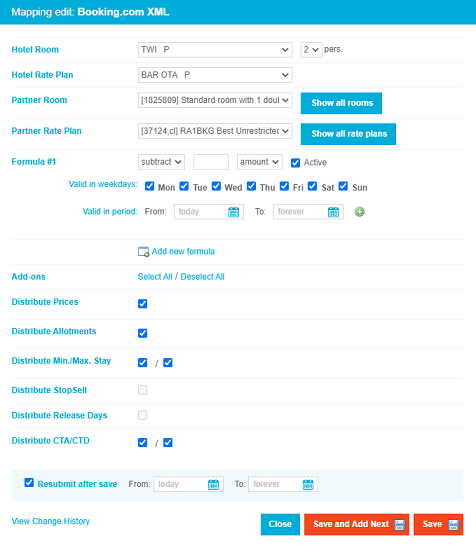
- Hotel Room: Select the internal room type.
- Partner Room: Connect it to the matching room on the OTA extranet.
- Rate Plans: Select and match the corresponding rate plans for both levels.
- Occupancy Matching: Ensure the occupancy level (e.g., "2 pers.") matches. Note: Pro/Pro+ versions may require individual mappings for each occupancy level in occupancy-based pricing modes.
4. Price Recalculation Formulas
Use the Formula #1 section to automate price changes before shipment to the OTA. This is primarily used to manage different margins across channels.
- Action: Choose to "Add" or "Subtract" a value.
- Type: Specify if the value is an absolute amount or a percentage.
- Restrictions: Set formulas to trigger only on specific days of the week or during defined date periods.
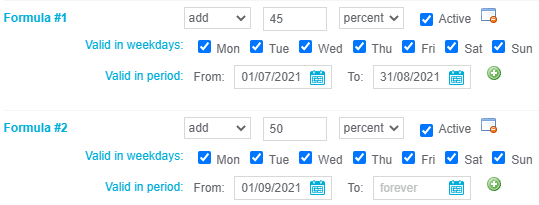
- Multiple Periods: Use the green plus icon to add several validation periods to a single formula.

- Additional Formulas: Use the Add New Formula button to create secondary recalculation logic for the same mapping row.
5. Data Synchronization Parameters
After defining the room/rate match, specify which data types to synchronize:
- Sync Categories: Check the boxes for parameters intended for update (e.g., Prices, Allotment, Restrictions).
- Unsupported Data: Grayed-out checkboxes indicate parameters not supported by that specific OTA connection. This does not mean that the information is not distributed. It is distributed, but not as an independent parameter.
- Resubmit after Save: This option is marked as default to trigger an immediate data load from the calendar to the OTA upon saving.

6. Adding Multiple Formulas to the Mapping
To apply formulas to multiple mappings simultaneously:
- Click Multiple Mapping Formulas next to the Add New Mapping button.
- Select all Room and Rate combinations that require the formula.
- Define the calculation logic (Add/Subtract, Value, Type).
- Set time or day restrictions as needed and click Save.

7. Editing Existing Mappings
To modify established connections:
- Locate the mapping row in the table.
- Click Edit in the Operations column.
- Update room/rate pairings, formulas, or sync parameters.
- Click Save to apply changes or Save and Add Next to continue mapping different categories.

8. Key Terms Summary
| Term | Definition |
|---|---|
| Mapping Helper | A filter that hides room/rate combinations already present in the mapping table to prevent duplicates. |
| Occupancy Based Pricing | A pricing model requiring separate mappings for different guest counts (Pro/Pro+ versions only). |
| Margin Management | The use of formulas to adjust prices per OTA to account for commission or channel costs. |
| Resubmit | An immediate synchronization of current pricelist data to the OTA extranet. |