A rate plan is a configuration of price restrictions and rules used to sell room categories. Rate plans define the conditions under which room prices are distributed to external channels (OTAs) or booking engines.
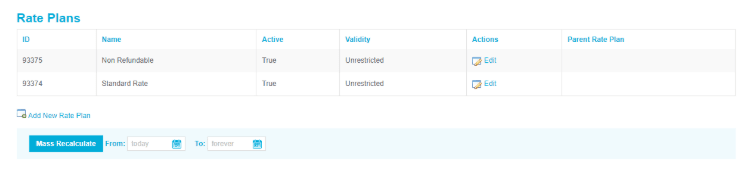
- Create: Click Add New Rate Plan to define a new pricing structure.
- Edit: Modify existing plans by clicking Edit in the "Actions" column.
- Delete: Remove obsolete rate plans from the system.
- Mass Recalculate: Trigger the recalculation of formulas across all rate plans for a specific date range.
Rate plan configuration parameters
Each rate plan contains specific attributes that determine its behavior and visibility.

- ID: System-generated unique identifier
- Name: User-defined label for the rate plan
- Length of Stay (LOS): Default Minimum (MinLOS) and Maximum (MaxLOS) stay restrictions
- Release Days: The minimum lead time required for a booking to be valid
- Period: Limits rate plan activity to a specific date range (e.g., seasonal packages)
- Days outside active periods: A setting to automatically close availability when outside the defined 'Period'
- Available (Days of week): Restricts distribution to specific days (e.g., Weekday-only rates)
- Meal Plan: Associates a default meal configuration (e.g., Breakfast Included) with the plan
- Currency: Defines a specific currency for the plan if different from the property default
- Status (Active/Inactive): Determines if the room status is live or disabled
- Sort Order: Controls the display sequence of the rate plan in lists
Cancellation and penalty policies
You can set detailed policy definitions to be used by advanced PMS systems and booking engines.
Note:
Many OTAs do not support these specific parameters.
- Order Held Until: Expiration time for unconfirmed orders.
- Penalty After Reservation (%): Immediate penalty fee upon booking.
- Cancellation Deadline: The cutoff time for penalty-free cancellations.
- Penalty After Deadline (% or Days): Fees applied after the cancellation window closes.
Rate plan formulas (price dependencies)
Formulas are recalculating algorithms that link the prices of two separate rate plans. This creates a parent-child relationship.
Parent and child rate plan logic
- Parent rate plan: The base rate from which prices are derived.
- Child rate plan: The dependent rate that automatically updates based on the parent’s values.

Set up a formula
- Edit the child rate plan.
- Select the Parent Rate Plan from the dropdown menu.
- Define the rule conditions: Choose to add or subtract a fixed amount or a percentage.
- Occupancy mode: For occupancy-based pricing, specify if the value applies 'per room' or 'per person'.
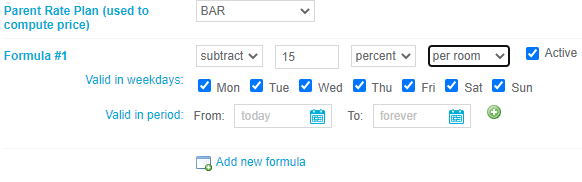
- Restrictions: Apply formulas only to specific days of the week or date periods.
- Recalculation: Enable 'Recalculate from base rate plan after saving' to apply changes immediately to the pricelist.
Key Terms Summary
| Term | Definition |
|---|---|
| Channel Manager | The central tool managing rates and availability across distribution channels. |
| Formula | An algorithm used to automate price updates between parent and child rates. |
| Parent rate | The source rate used for automated price calculations. |
| Child rate | A dependent rate that inherits modified pricing from a parent rate. |
| MinLOS / MaxLOS | Restrictions defining the minimum or maximum stay duration required for a rate. |
| Release days | The advance booking window required for a rate to be bookable. |
Fix child room price discrepancies using mass recalculate
When managing room rates, you may encounter situations where child rooms do not correctly inherit prices from their parent rooms, even after loading rates. This can lead to discrepancies where certain dates or room types appear without the expected pricing. This issue arises when default prices are not being correctly applied by the channel.
The Mass Recalculate option provides a solution to apply a comprehensive recalculation across all rooms and price plans, ensuring that all rates are correctly updated and inherited.
Instructions:
- Navigate to Setup > Rooms / Rate plans section.
- Locate the Mass Recalculate option. This feature is designed to apply a massive recalculation for all rooms and price plans.
- Activate the Mass Recalculate option. The system will then process and automatically recalculate prices for all affected dates and rooms, ensuring that child rooms correctly inherit prices from their parent rooms.
- Verify that the prices are now correctly displayed for all affected rooms and dates.
Configure a rate plan with minimum length of stay (LOS)
Instructions:
- Create the rate plan in your OTA:
First, create a new rate plan in your Online Travel Agency (OTA) that specifies a minimum length of stay (e.g., 10 nights) - Configure or create rate in Channel Manager:
Navigate to Setup > Rate plans and create the required rate plan.
Here, you can either configure an existing rate plan or create a new one. When creating or configuring, ensure you set the minimum length of stay (LOS) restriction, for example, LOS= min:10.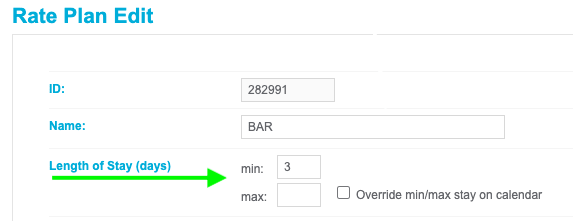
- Map rate plans:
Once the rate plan is created in your OTA and configured in Channel Manager, map these corresponding rate plans within Channel Manager. This mapping ensures that the restriction (MLOS) is correctly sent to the OTA.
Important:
Mapping is crucial. Without proper mapping in Channel Manager, the restrictions set will not be communicated to your OTA.
Sync cancellation policies
The cancellation policy (e.g., a 30-day penalty) configured within your channel manager is not automatically reflected on external booking channels and may appear as 'non-refundable'. The cancellation policy settings within your channel manager are for internal reference and management only. These detailed policies are not transmitted to external booking channels.
To configure policies on external channels, configure and update your cancellation policies directly on the administration panel of each external booking channel (e.g., Booking.com, Expedia, etc.) where your rates are listed.
After configuring policies on external channels, always verify their correct display on the customer-facing side of those platforms to ensure accuracy.
Troubleshooting
Problem: Child rooms are not displaying inherited prices from parent rooms, or specific dates show no prices.
Solution: Use the Mass Recalculate option as described above. This will force the system to re-evaluate and apply all prices, including default and inherited rates.
Problem: Unable to save configuration changes related to room pricing.
Solution: While the Mass Recalculate option doesn't directly address saving issues, it resolves the underlying problem of price discrepancies. If saving issues persist after recalculation, ensure all required fields are filled and check for any system error messages.
Problem: A detailed cancellation policy didn't sync to all external channels.
Solution: A common misconception is that setting a detailed cancellation policy in the channel manager rate plans will automatically update all connected external channels. This is not how the system is designed to work for specific cancellation policy details.
