In the "Rooms" sections, manage room categories, pricing formulas, and occupancy-based pricing (OBP) within the Channel Manager.
Add a new room category
In the Rooms panel, click Add New Room.

- Fill in the following mandatory fields:
- Name: User-defined category name (internal only).
- Number of Adults/Children: Defines maximum occupancy limits.
- Default Allotment: Total inventory available for blank calendar dates.
- Cap Allotment: The maximum inventory limit allowed in the system.
- Default Price: Base rate applied to blank calendar dates.
- Min/Max Price: Safety thresholds for rates sent to channels or PMS.
- Associated Rate Plans: Select which rate plans can map to this category.

- Click Save to enable the category for mapping.
Room pricing formulas
Formulas create a dependency between room types, allowing a "child room" to automatically recalculate its price based on a "parent room."
Configure price dependencies
Selection: Edit the target child room and locate the Parent Room dropdown.

- Rule definition: Choose an operation: Add or Subtract.
- Set either a fixed amount or percentage.

- Set either a fixed amount or percentage.
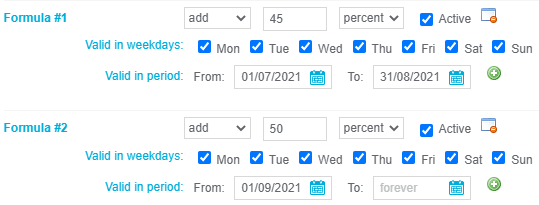
Restrictions: Set specific time periods or days of the week for the formula. You can add multiple validation periods to one formula by clicking green plus icon
 .
.
Mass recalculate: Use the Mass recalculate function or check Recalculate from base room after saving to apply formulas to existing pricelist values.

Occupancy-based pricing (OBP)
OBP is available in Pro and Pro+ versions and offers two distinct operational modes.
Mode A: Formula-based OBP
This option is best for manual price management. Prices for different occupancy levels are derived from a single base rate using recalculating algorithms.
- Setup: Deactivate the room before changing occupancy criteria.
- Logic: Click the Calculator icon for each occupancy level to set add/subtract rules (amount or percentage).
Mode B: PMS-oriented OBP
This mode is best for external system integrations (e.g., Opera, Mews).
- Setup: Only the occupancy range is defined in the Channel Manager.
- Management: Individual price levels are pushed directly from the PMS to the pricelist.
Date-specific supplements (Add-ons)
Use add-ons for one-time fees like New Year’s Eve gala dinners or holiday-specific child fees.
- Create add-on: Navigate to Setup > Rooms > Add-ons and click Add New.
- Define value: Enter the fee amount (e.g., "80€").
- Set date: Specify the exact date (e.g., "31/12/2026") so the fee does not apply to the rest of the year.
- Mapping:
- Go to the Mapping Table.
- Edit the relevant rows for each channel/room.
- Select the add-on and enable Resubmit after save to push the update to the OTA immediately.
5. Key terms summary
| Term | Definition |
|---|---|
| Allotment | The quantity of rooms available for sale. |
| Parent room | The base room category from which other rooms derive their price. |
| Child room | A room category whose pricing is controlled by a parent room formula. |
| Resubmit after save | A command that triggers an immediate data push to connected channels. |
| Occupancy mode | The method (Formula or PMS) used to calculate rates for different guest counts. |
